
Overview
Grow CRM allows you to import hundreds of clients in just a matter of seconds using the bulk import feature. This is particularly useful when migrating from another CRM system or when you have a large client database to set up initially.
Import Process
1
Navigate to the Clients Section
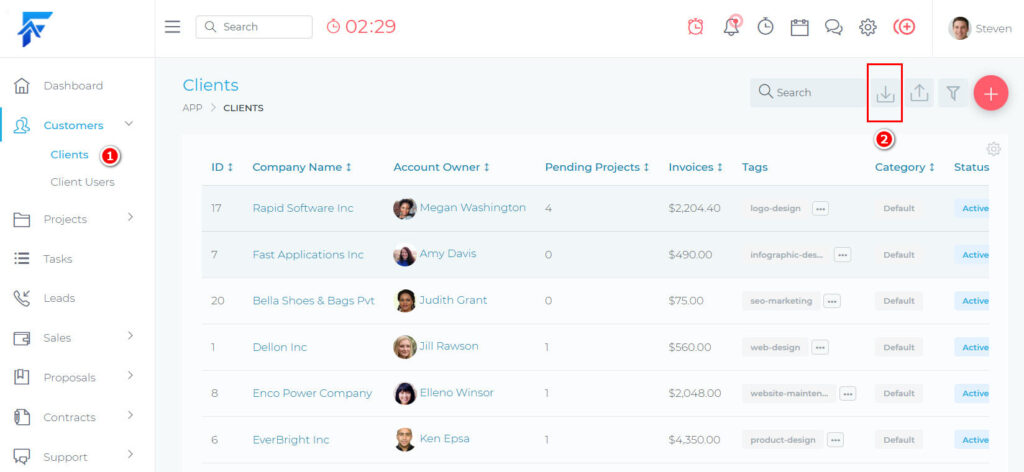
Click on “Clients” in the main menu, then locate and click on the “Import Clients” icon in the clients page.
2
Prepare and Upload Your Client Data
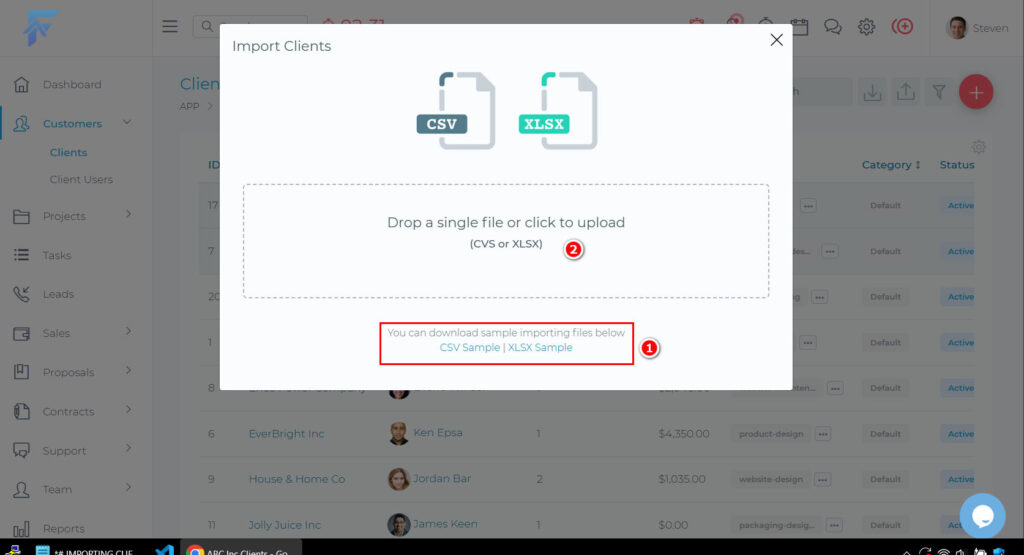
Once you click the Import Clients icon, a modal window will appear with further instructions:
- Download the provided sample files (CSV or XLSX format) to see the required format
- Fill the template with your client data, following the exact format
- Drag and drop your completed file onto the designated area
3
Review Import Results
After uploading your file, the system will process the data and display the results:
- Number of clients successfully imported
- Any errors encountered during the import process
This completes the import process. For each imported client, the system creates both a client organization and the primary client user.
File Format Requirements
Important: Your import file must strictly follow the format of the sample templates provided. Any deviation may result in import errors or incorrect data.
The system accepts two file formats:
- CSV (Comma Separated Values) – A simple text file format that can be opened and edited in various applications, including Excel and Google Sheets
- XLSX (Excel) – Microsoft Excel’s native file format
Troubleshooting Common Issues
File Format Errors
- Ensure column headers match exactly as shown in the template
- Do not add or remove columns from the template
- Check for special characters that might cause parsing issues
Email Address Issues
- Ensure email addresses are in the correct format
- Email addresses must be unique – duplicates will be rejected
After Import
Once the import is complete:
- Your new clients will appear in your clients list
- Each imported client will have both an organization profile and a user account
- Client users will receive an email with their login credentials if email notifications are enabled